How to Share Your Screen Using Zoom Room

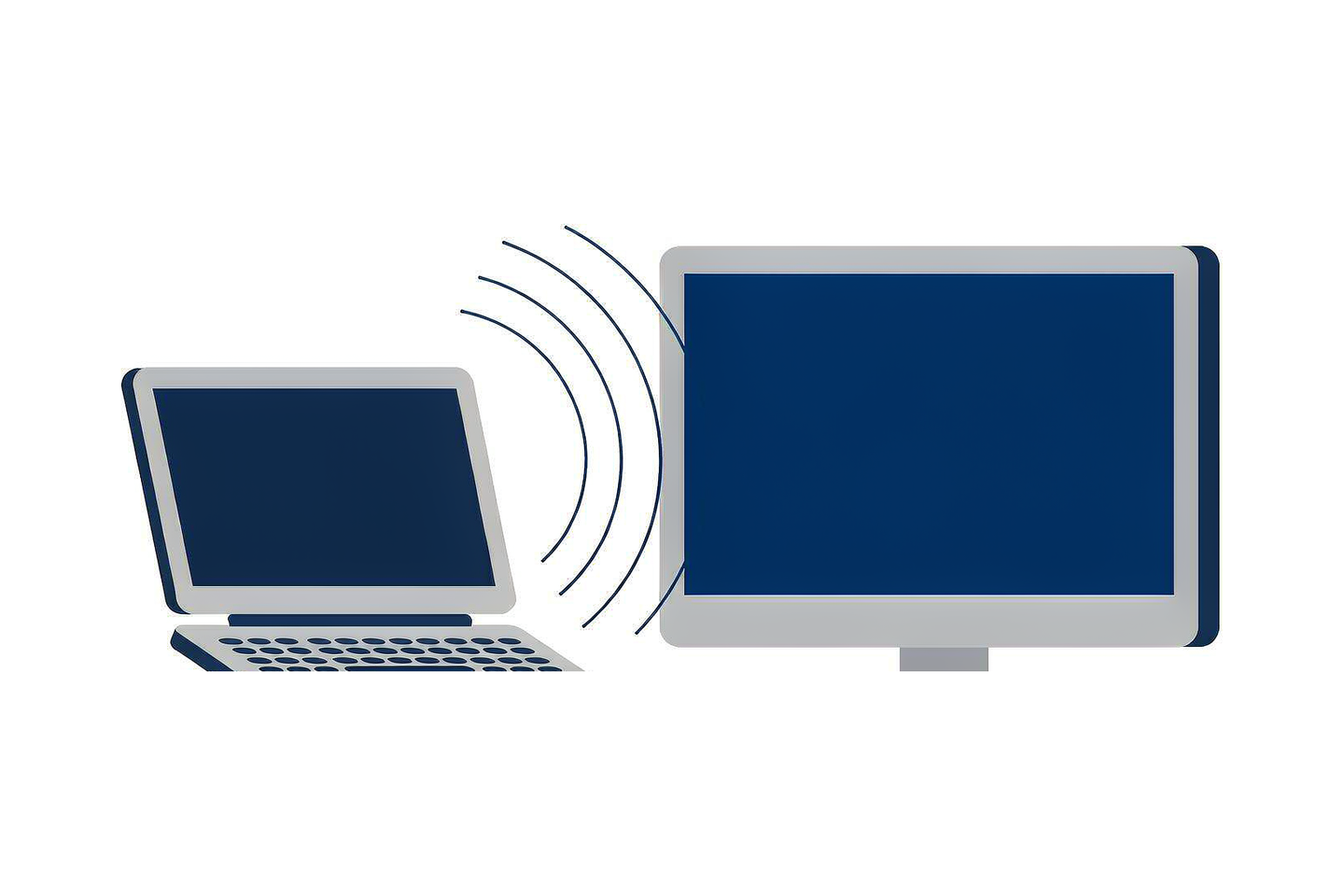
Put your laptop screen on the room display with the Zoom Room sharing key.
Illustration: laptop sending its screen wirelessly to the room display

BEFORE YOU START

  • The room provides Zoom Room screen sharing (“Share Zoom Room” on the meeting room PC).
  • The room display is switched on. If it is not, follow that room’s start-up guide.

Step by step

01

Open Share Zoom Room

On the meeting room PC, open Share Zoom Room.

02

Note the sharing key

The sharing key is shown in the top-right corner of the room display. Make a note of it.
Placeholder frame for a real screenshot of the room equipment
Illustration — placeholder for a photo of the Share Zoom Room screen and the sharing key.

03

Open Zoom on your laptop

Start the Zoom application on your laptop.

04

Enter the sharing key

Type the sharing key in Zoom to start sharing. Your laptop screen then appears on the room display.

05

Stop sharing

Stop sharing in Zoom when you have finished.

06

Leave the room ready

Follow the room’s shut-down guide when the meeting is over.

IMPORTANT

  • This guide covers Zoom Room screen sharing only. Other wireless sharing systems have their own instructions.
  • The sharing key always appears in the top-right corner of the room display.
  • If the room has no Zoom Room sharing, use an HDMI connection instead — see Present Using HDMI.
  • Do not install software on meeting room equipment.

Related guides

Need help?

Contact IT Support if the room equipment does not work as described.

ServiceHub: servicehub.gtiit.edu.cn  |  Email: itsupport@gtiit.edu.cn