Present Using the Meeting Room PC

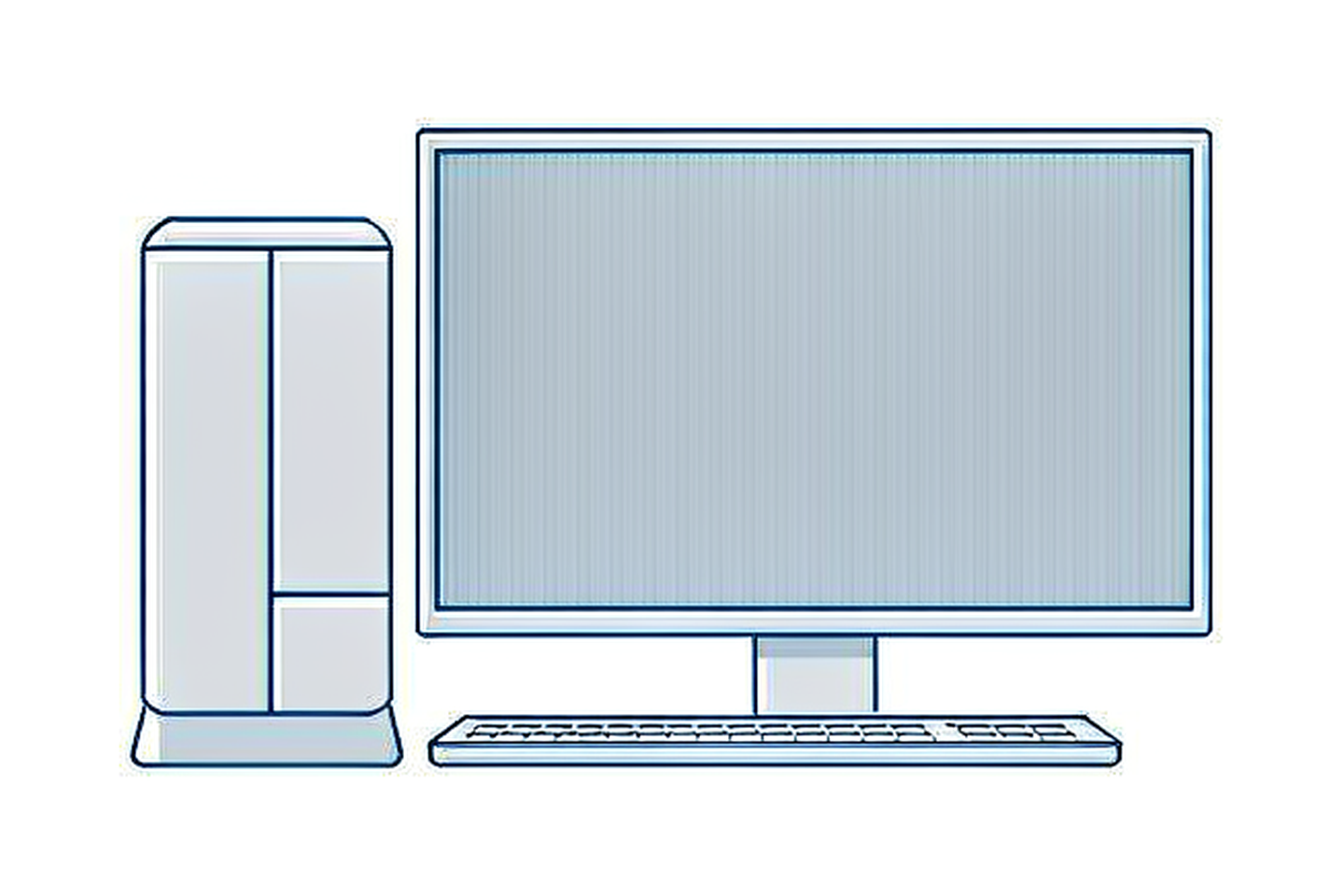
Show your presentation from the computer that is built into the meeting room.
Illustration: meeting room computer, display and keyboard

BEFORE YOU START

  • The room has a built-in meeting room PC — check the room overview before you rely on it.
  • The room display is already switched on. If it is not, follow that room’s start-up guide.

Step by step

01

Find the meeting room PC

The PC is part of the room installation, usually in or beside the equipment rack.

02

Show the PC on the room display

The room PC is normally the default source. If the display stays blank, use that room’s own instructions for selecting the PC as the source.
Placeholder frame for a real screenshot of the room equipment
Illustration — placeholder for a screenshot of the meeting room PC desktop.

03

Open your presentation

Open the file on the meeting room PC. If it is on a USB drive, connect the drive to the PC and open the file from there.

04

Present your content

Run your presentation from the room PC as you would on your own computer.

05

Finish and clear your files

Close the files you opened and remove your USB drive. Sign out of any personal account you used on the room PC.

IMPORTANT

  • Meeting rooms do not all use the same control panel or display source. Follow the guide for the room you are in.
  • Sign out of personal accounts before you leave the room PC.
  • Do not operate the equipment rack switches unless IT has told you to.

Related guides

Need help?

Contact IT Support if the room equipment does not work as described.

ServiceHub: servicehub.gtiit.edu.cn  |  Email: itsupport@gtiit.edu.cn