Present Using HDMI

Connect your laptop to the room display with an HDMI cable.
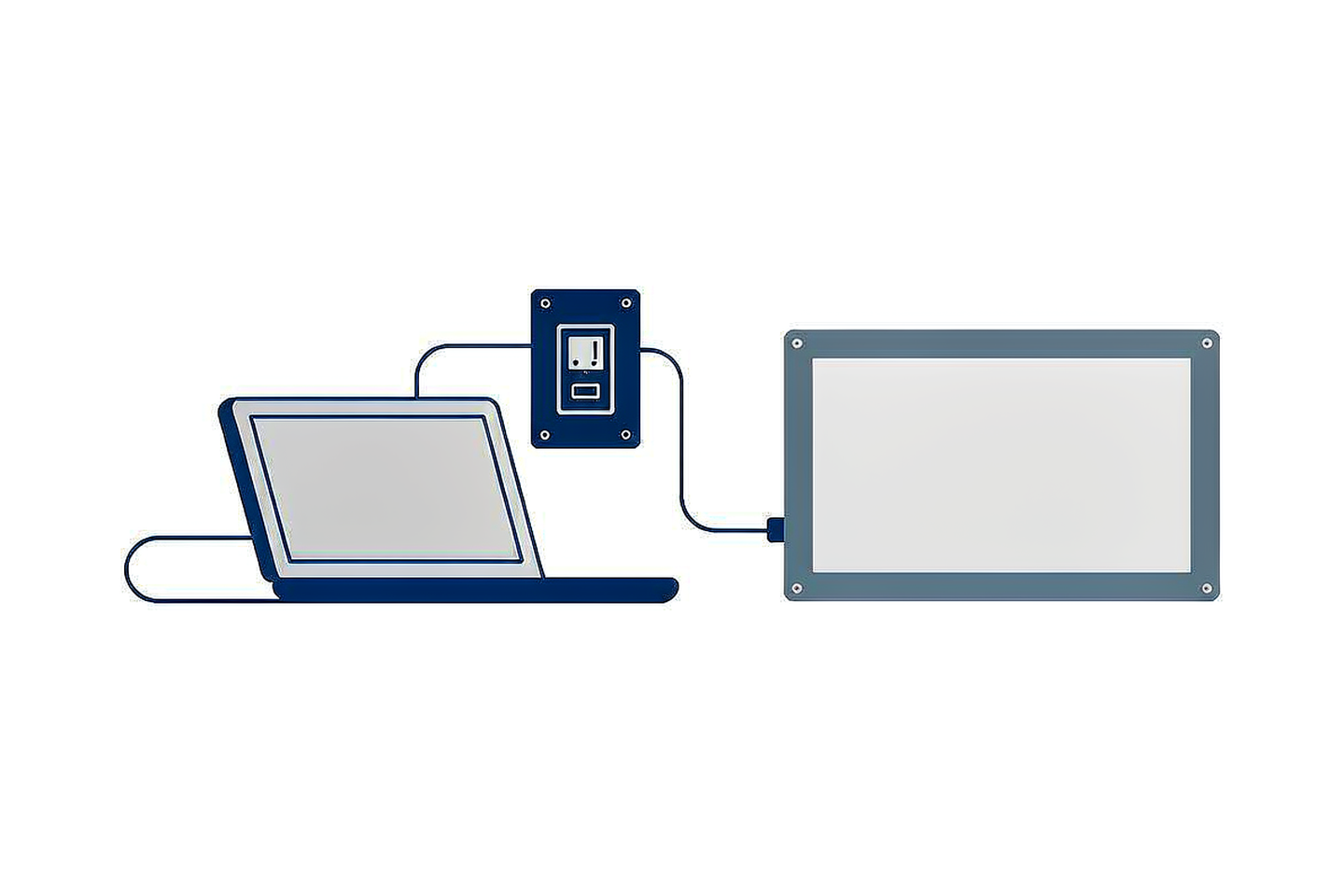
Illustration: laptop connected by HDMI cable to the room display

BEFORE YOU START

  • The room has a supported HDMI connection — check the room overview.
  • A cable or an adapter may not be provided. A room can support HDMI without supplying either.

Step by step

01

Check what the room provides

Check the room overview for three separate things: an HDMI input, an HDMI cable, and whether you need your own adapter.

02

Connect the cable to your laptop

Use the cable fitted in the room, or your own cable. If your laptop has no HDMI port, use a compatible adapter.

03

Select the HDMI source

If the display does not switch automatically, use that room’s instructions for selecting the HDMI source.

04

Present your content

Run your presentation from your laptop.

05

Disconnect

Unplug the HDMI cable from your laptop when you have finished, and take your adapter with you.

IMPORTANT

  • HDMI availability, cables and adapters vary by room. Check the room overview before assuming HDMI is unavailable.
  • Bring your own compatible adapter if your laptop has no HDMI port.
  • Different rooms select the display source in different ways — follow the room’s own instructions.
  • Do not operate the equipment rack switches unless IT has told you to.

Related guides

Need help?

Contact IT Support if the room equipment does not work as described.

ServiceHub: servicehub.gtiit.edu.cn  |  Email: itsupport@gtiit.edu.cn