Start SC-A202 Multimedia System

Switch on the projector and the multimedia system in SC-A202 from the room iPad.
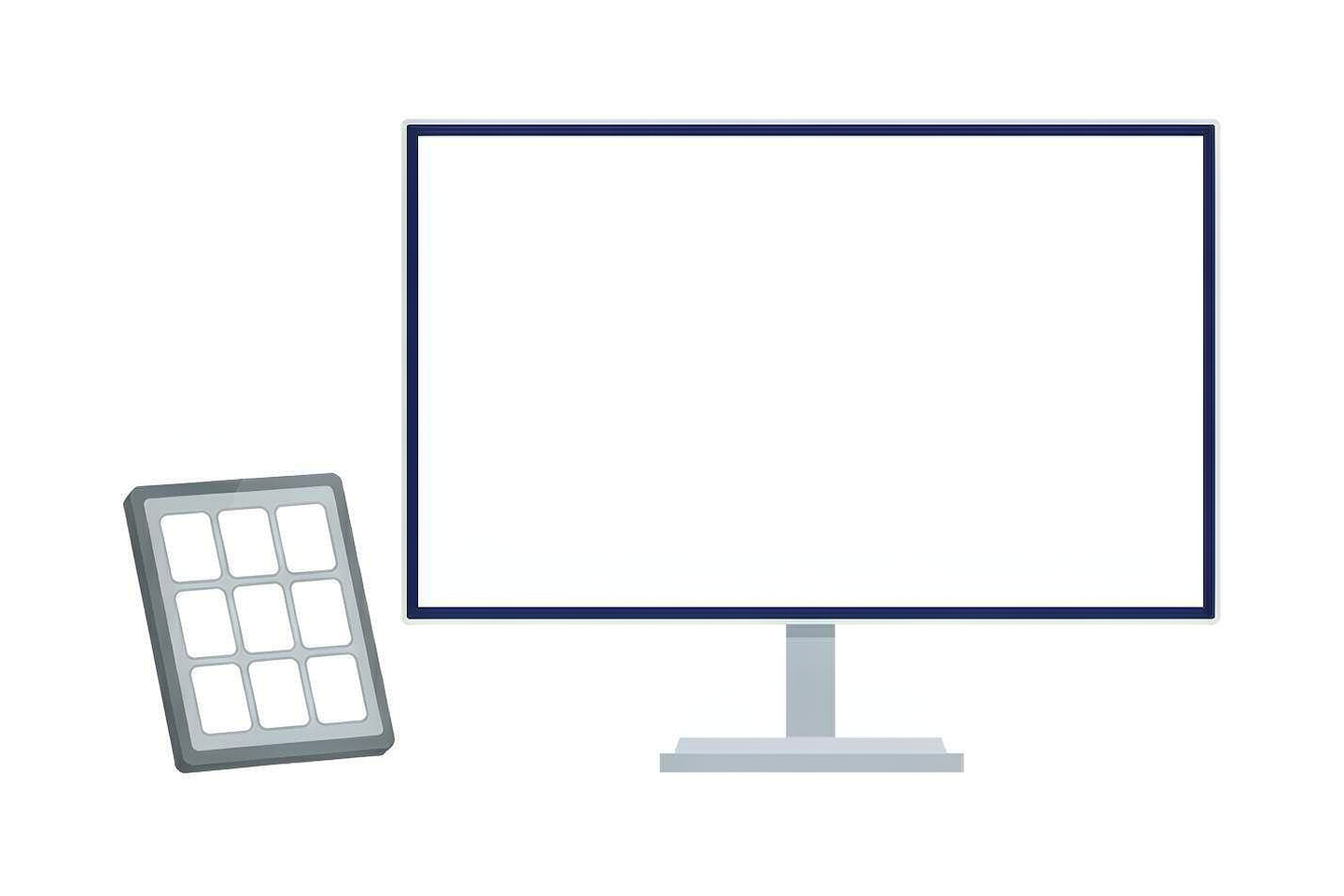
Illustration: meeting room display with the control tablet

BEFORE YOU START

  • You have an approved booking for SC-A202.
  • The room is controlled from the iPad with the Wit Control app. Never use the switches on the equipment rack.

Step by step

01

Pick up the iPad

The iPad is normally on the table beside the equipment rack, or inside the rack.

02

Open Wit Control

Unlock the iPad and open the Wit Control app.

03

Open the control panel

Select “Welcome”.

04

Turn on main power

Select “Power Control”, then select “TURN ON” under Main Power Control. Wait while the equipment rack starts up.
Placeholder frame for a real screenshot of the room equipment
Illustration — placeholder for a photo of the Wit Control screen on the SC-A202 iPad.

05

Turn on the projector

Select “TURN ON” under Projector Power Control.

06

Choose how you will present

The meeting room PC is the default display source. You can now use the room PC, connect your laptop with HDMI, or follow the screen-sharing guide.

IMPORTANT

  • Turn the projector on only after the main power has finished starting up.
  • Use the iPad and the Wit Control app for every step. Do not press buttons or switches on the equipment rack.
  • Switch the system off when your meeting ends — see Shut Down SC-A202 Multimedia System.
  • If the iPad or the app does not respond, contact IT Support.

Related guides

Need help?

Contact IT Support if the room equipment does not work as described.

ServiceHub: servicehub.gtiit.edu.cn  |  Email: itsupport@gtiit.edu.cn