Show Your Laptop on the Meeting Room TV

This is recommended for everyday presentations and face-to-face meetings where you can share your laptop screen wirelessly using Zoom. You do not need to schedule or join a Zoom meeting just to present on the meeting room TV.

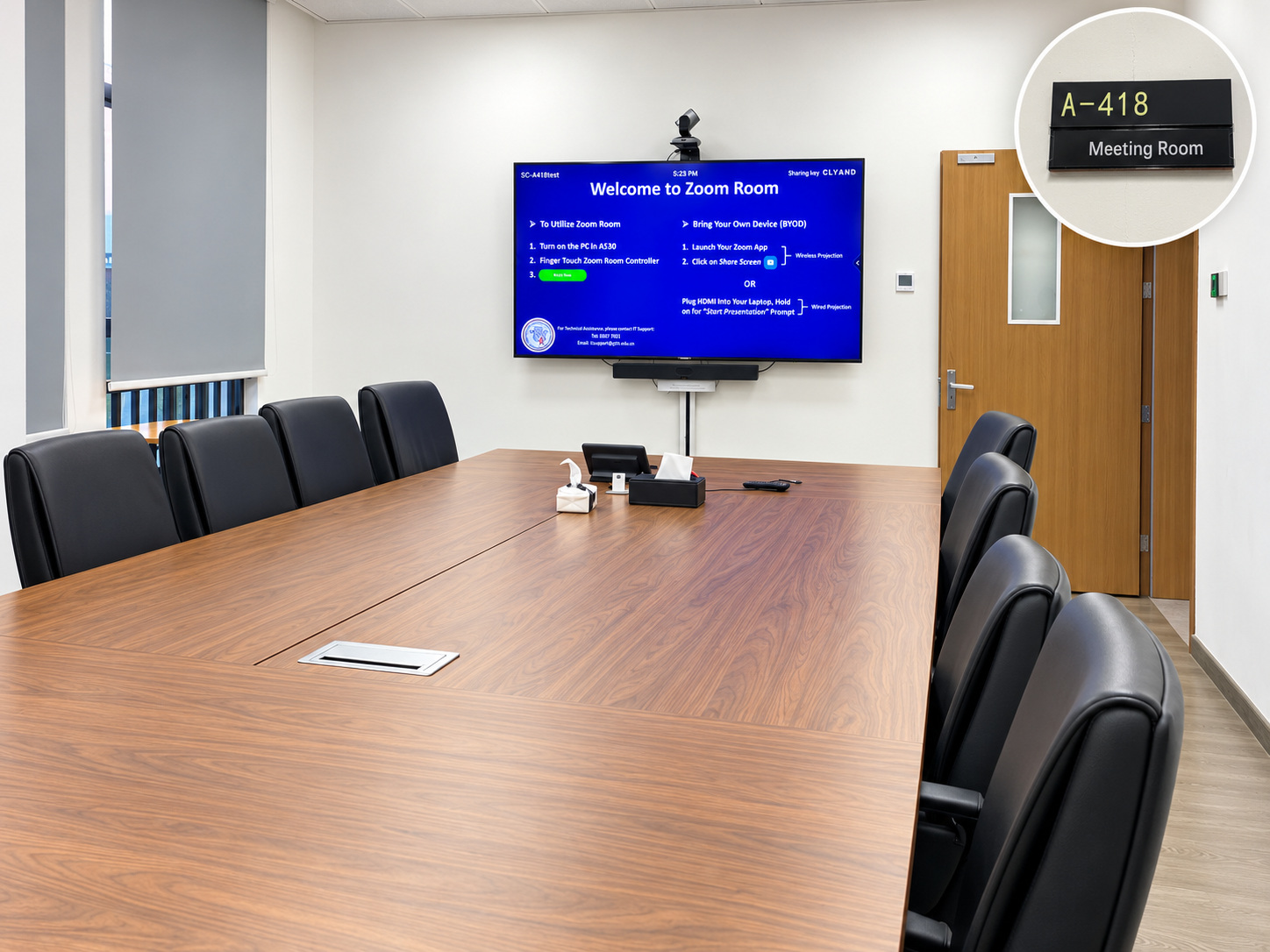
SC-A418 meeting room overview with A-418 door sign

BEFORE YOU BEGIN

  • Bring your laptop.
  • Make sure the meeting room TV is ready.
  • Open Zoom and sign in to your account.

Step by step

01

Open Zoom

Open Zoom on your laptop and sign in.

02

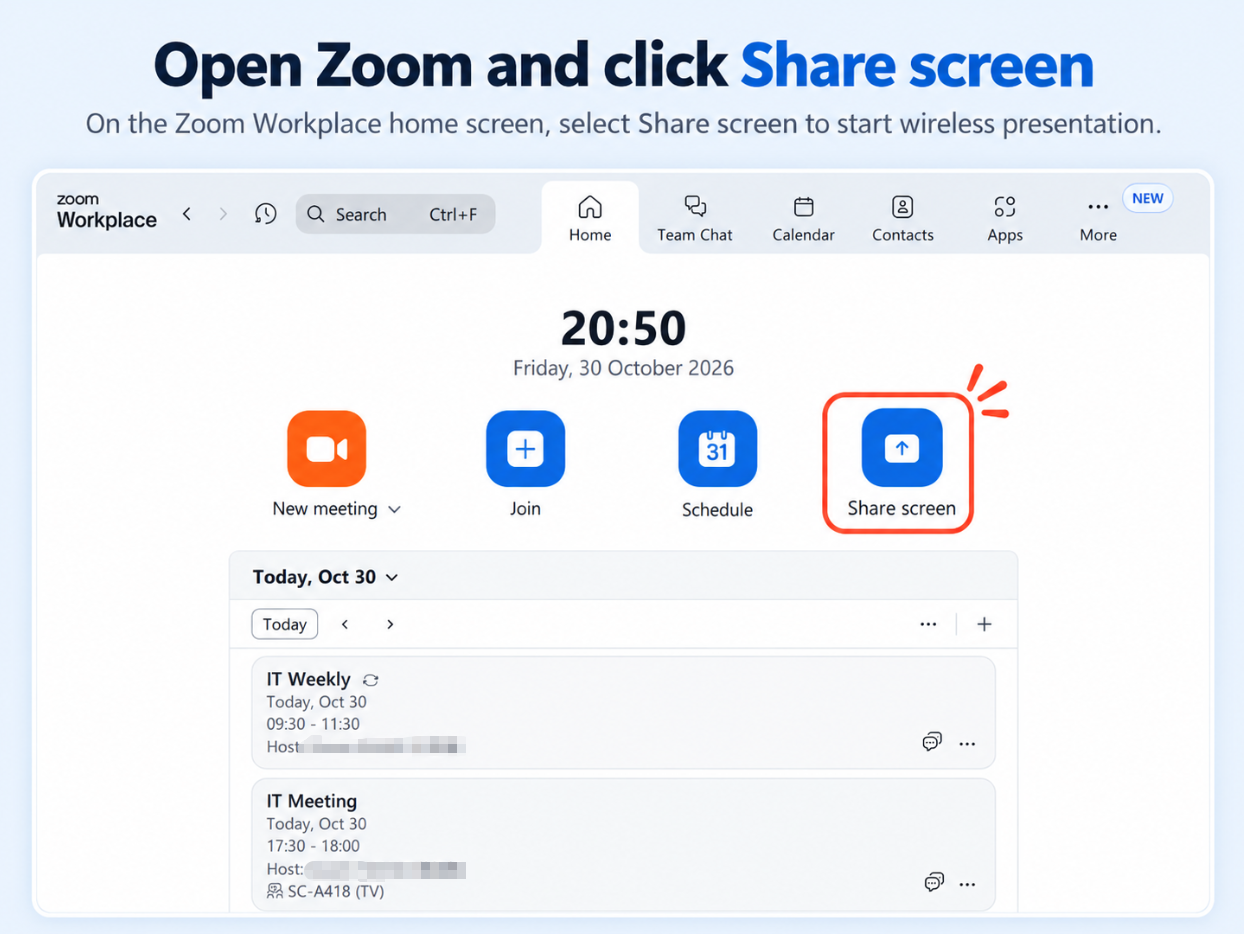
Click Share

In Zoom, select Share to start wireless screen sharing.

03

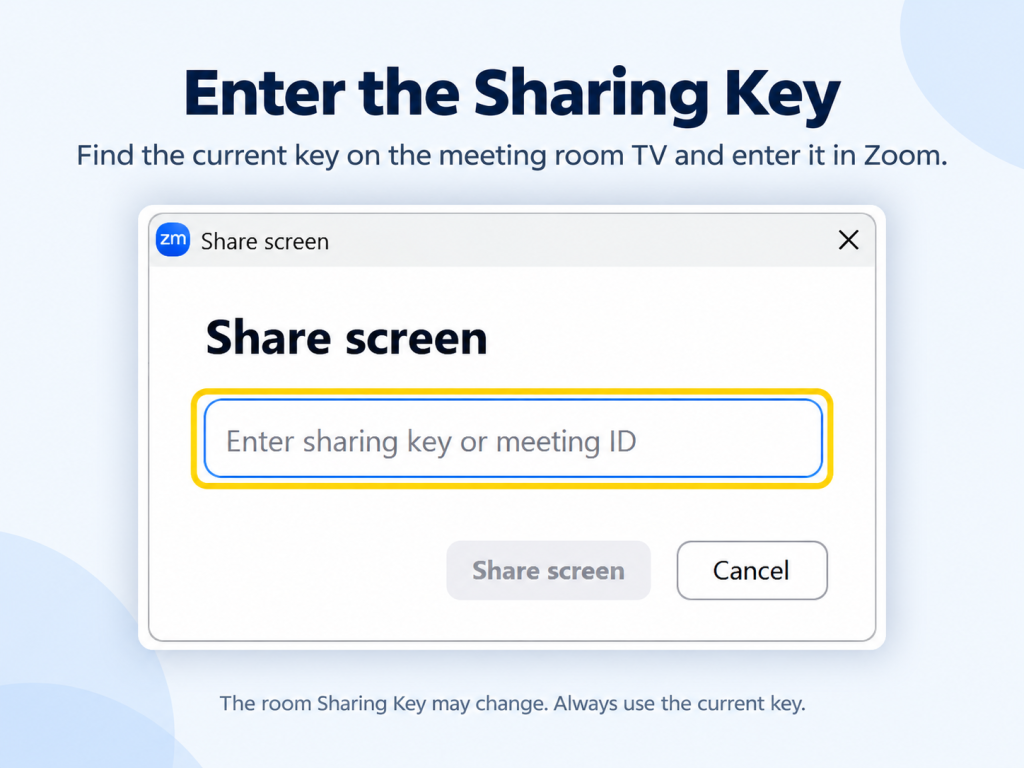
Enter the Sharing Key

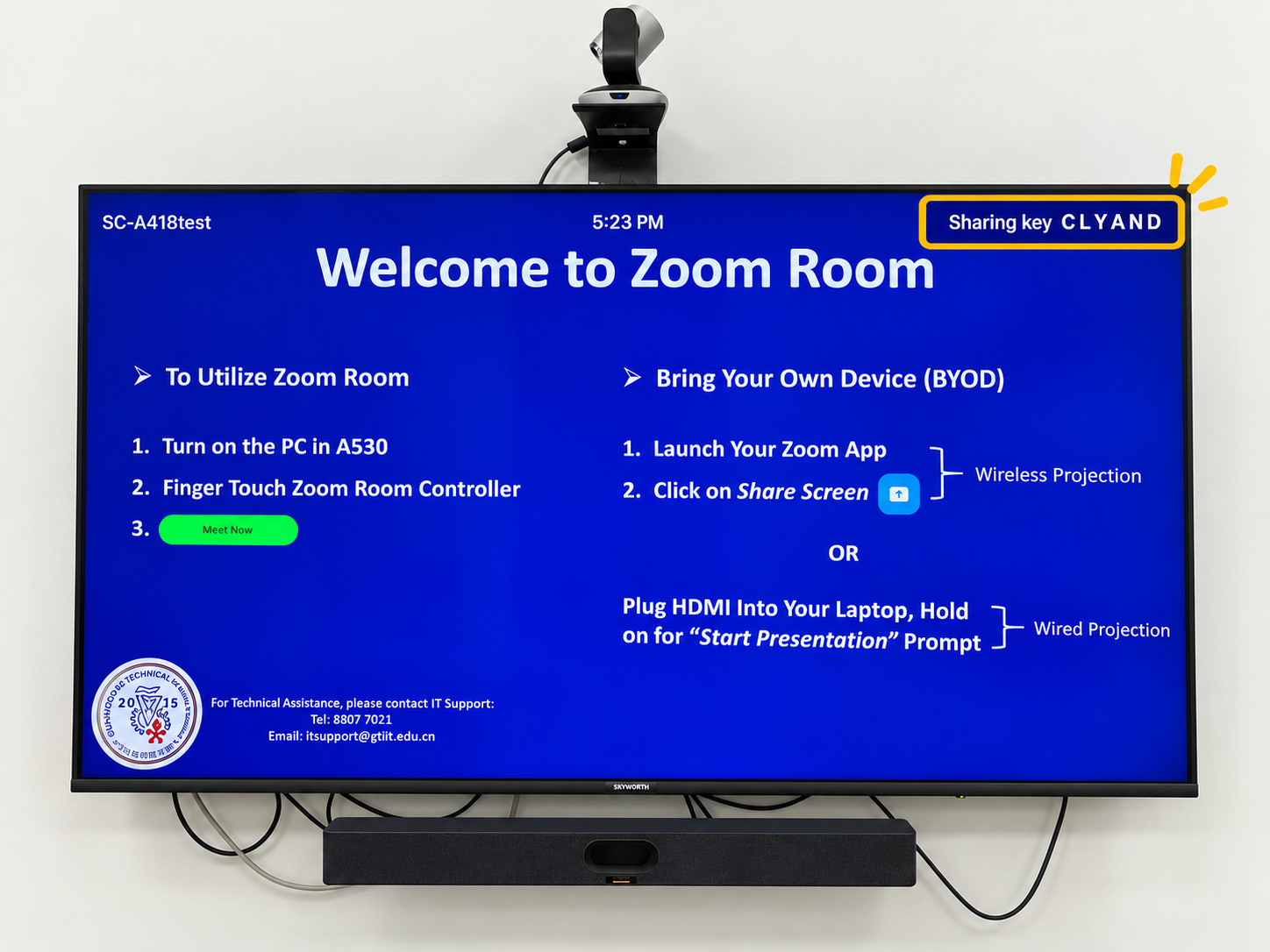
Find the Sharing Key in the top-right corner of the meeting room TV. Enter this code in Zoom.

04

Show Your Screen

Follow the Zoom sharing prompt. Your laptop screen will appear on the meeting room TV.

05

Stop Sharing

When finished, select Stop Share in Zoom.

Zoom Share control

Sharing Key on the meeting room TV

Zoom Sharing Key entry window

IMPORTANT

  • No cable is required.
  • You do not need to schedule a Zoom meeting for a normal face-to-face presentation.
  • External visitors should have Zoom installed and be signed in before presenting.
  • Do not switch to BYOD or use a wireless dongle for this method.

Related guides

Need help?

Contact IT Support if the room equipment does not work as described.

ServiceHub: servicehub.gtiit.edu.cn  |  Email: itsupport@gtiit.edu.cn