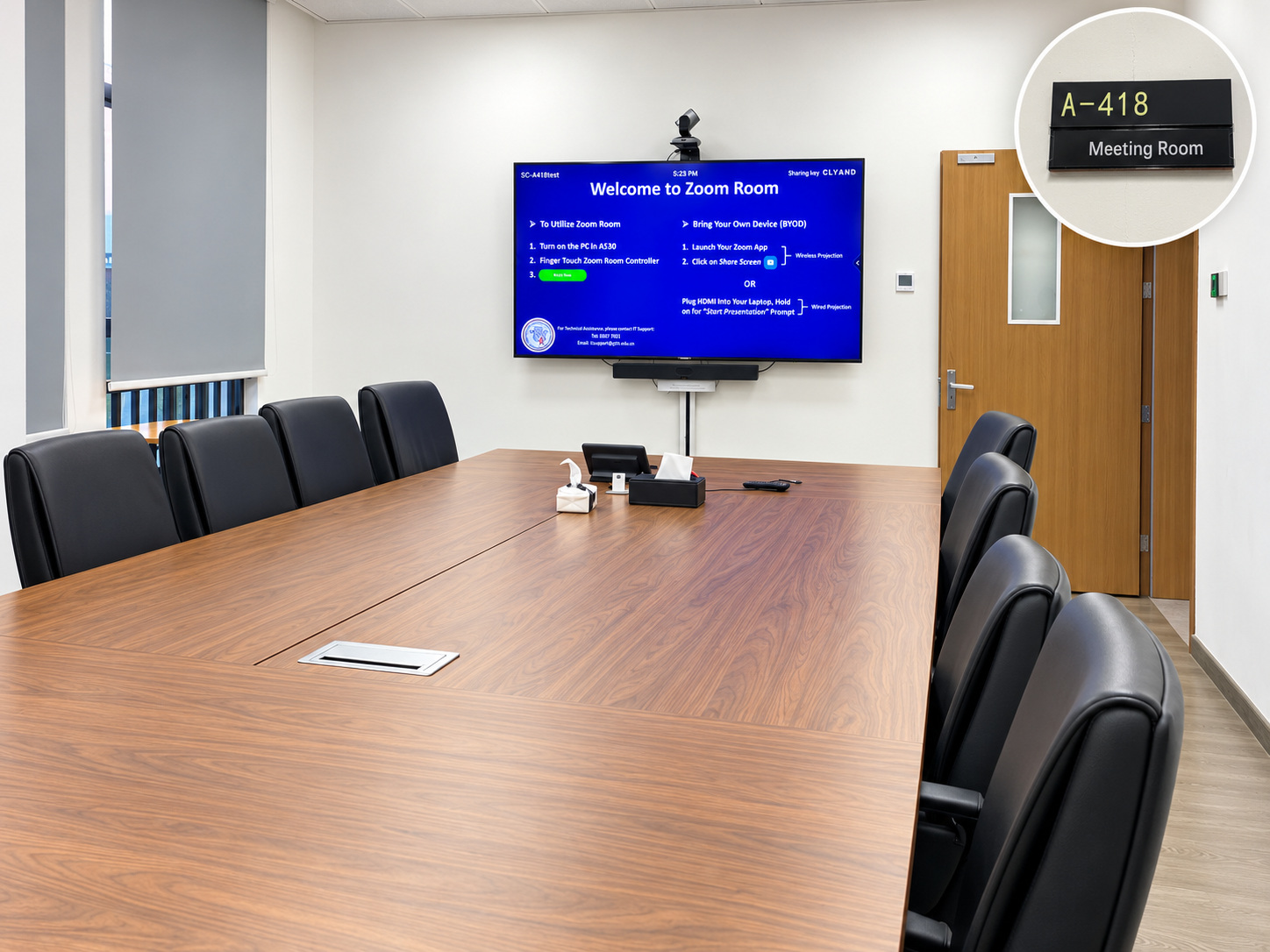
Scheduling a Zoom meeting does not automatically confirm SC-A418. Follow the centralized room-booking process and check the University Office approval.
A. Before the meeting — Schedule and invite
Step by step
01
Schedule Your Zoom Meeting
Open Zoom and select Schedule. Enter the meeting title, date, start time, and end time.
02
Invite Participants
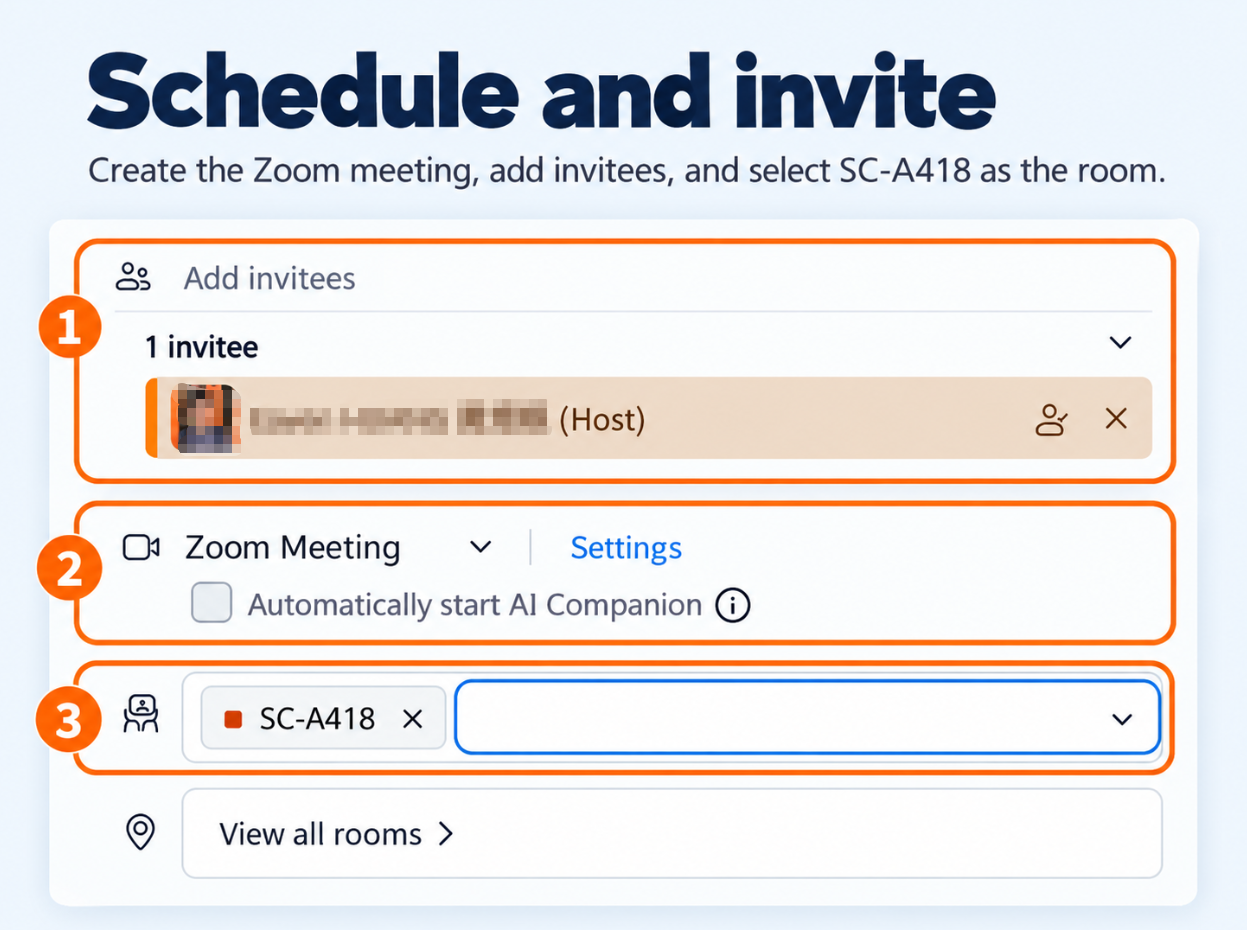
Add the people who will join online. Search for GTIIT colleagues or enter internal and external email addresses in Invitees or the equivalent option.
03
Review Meeting Settings
Keep Zoom Meeting selected where shown. Configure a Passcode or Waiting Room if needed, and add a short description.
04
Save and Send Invitations
Save the meeting and send the invitations. Participants should receive the meeting link, Meeting ID, and Passcode if enabled.
05
Confirm Your Room Booking
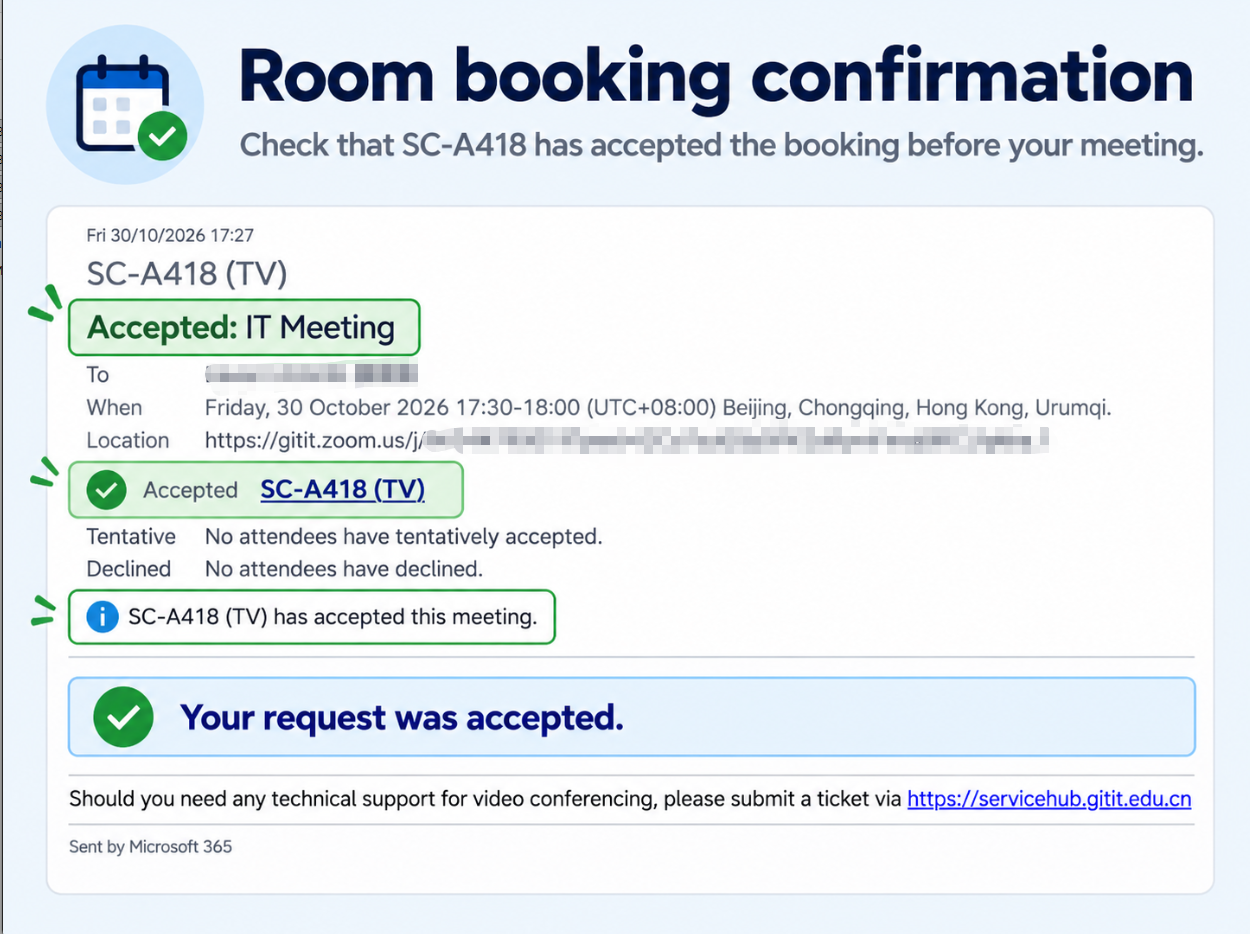
Reserve SC-A418 for the same date and time, then check the booking confirmation or University Office approval. A Zoom invitation does not by itself confirm the physical room.
Zoom Schedule and Invitees
Room-booking confirmation
B. At the meeting room — Start the meeting
Step by step
01
Check Your Booking
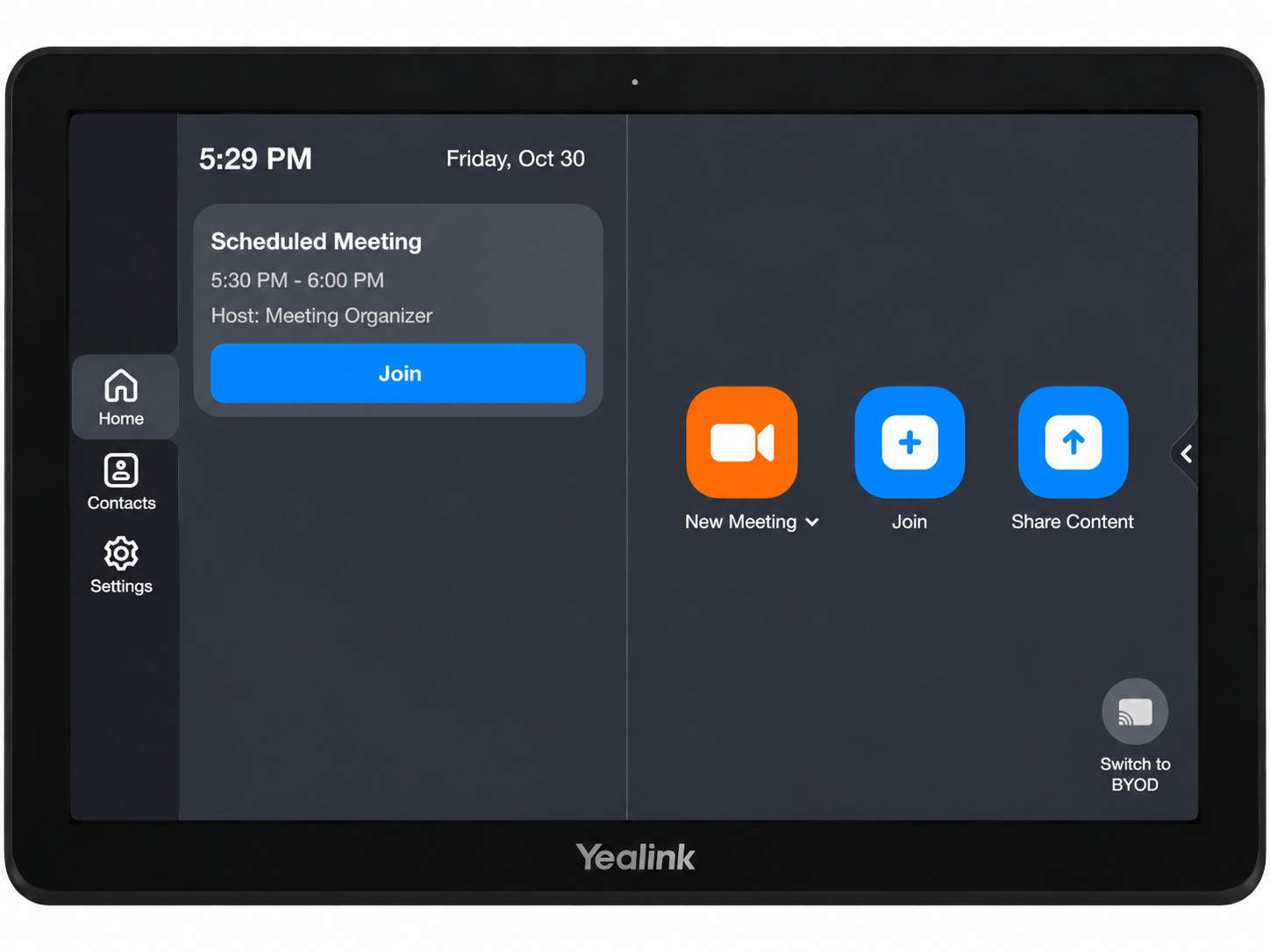
Before the meeting, check the room touch panel for your scheduled meeting. The electronic room sign may also show the schedule.
02
Start Your Meeting
Select the scheduled meeting on the room touch panel and tap Start or Join, as shown. The room camera, microphone, and speakers will be used.
03
Avoid Audio Feedback
If you also use Zoom on your laptop, mute its microphone and speakers or disconnect its meeting audio. Use the meeting room audio system to prevent echo.
Scheduled meeting on the touch panel
C. During and after the meeting
Step by step
01
Share Content If Needed
Follow the wireless screen-sharing instructions or use the USB-C connection where appropriate.
02
Finish the Meeting
Use the meeting room touch panel to leave or end the Zoom meeting. Stop sharing, collect your laptop, and leave the room ready for the next booking.
IMPORTANT
Check the physical room booking approval before using SC-A418.
Use the meeting room camera, microphone, and speakers for online meetings.
Avoid having both the laptop and room audio active at the same time.
Contact IT Support if the scheduled meeting does not appear on the meeting room touch panel.