Connect Your Laptop with USB-C

Use this method when you prefer a wired connection or need the room camera, microphone, and speakers with a meeting application on your laptop, by simply connecting your laptop directly to the meeting room TV using a USB-C cable on the table. 

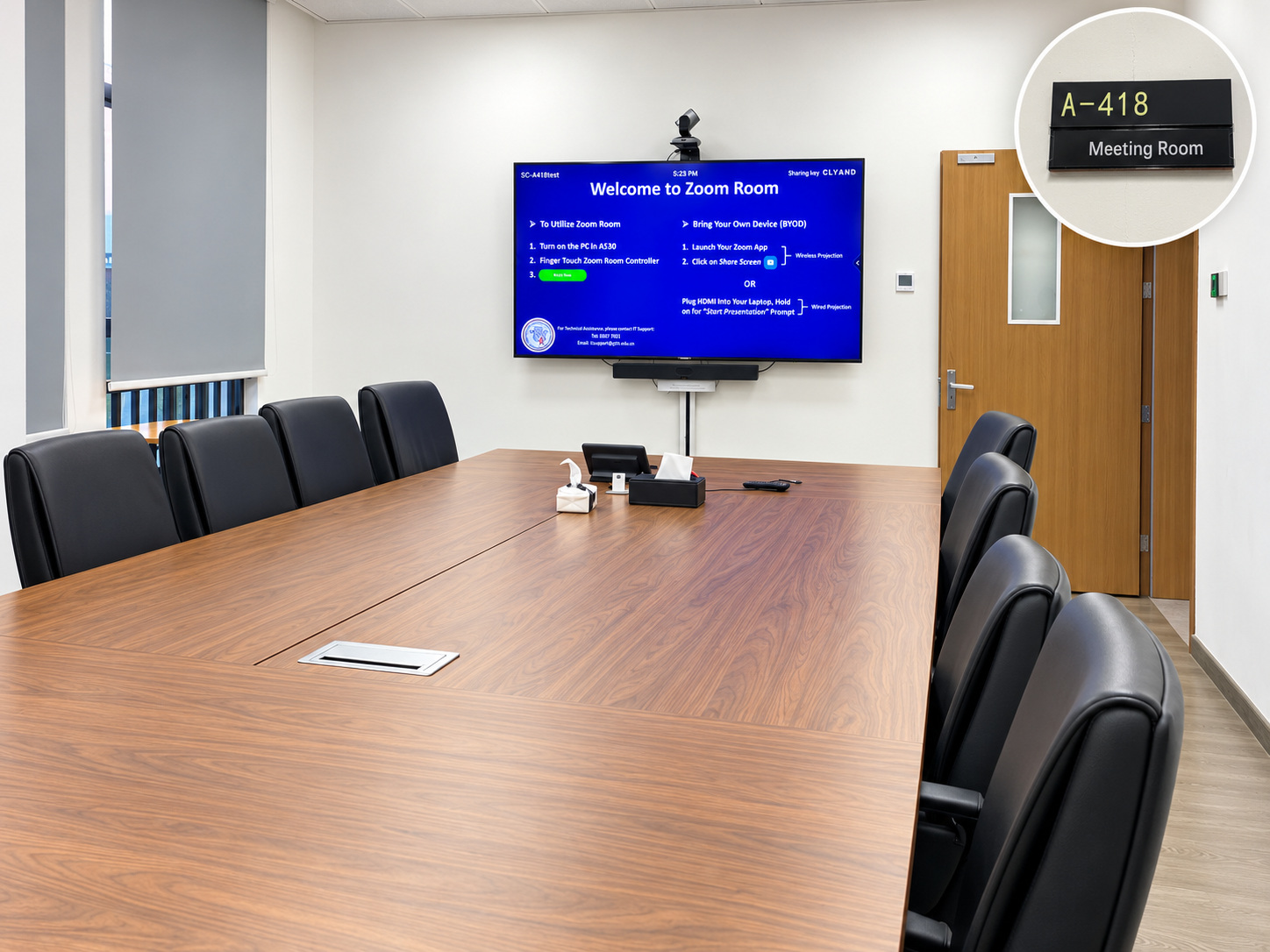
SC-A418 meeting room overview with A-418 door sign

BEFORE YOU BEGIN

  • Bring your laptop.
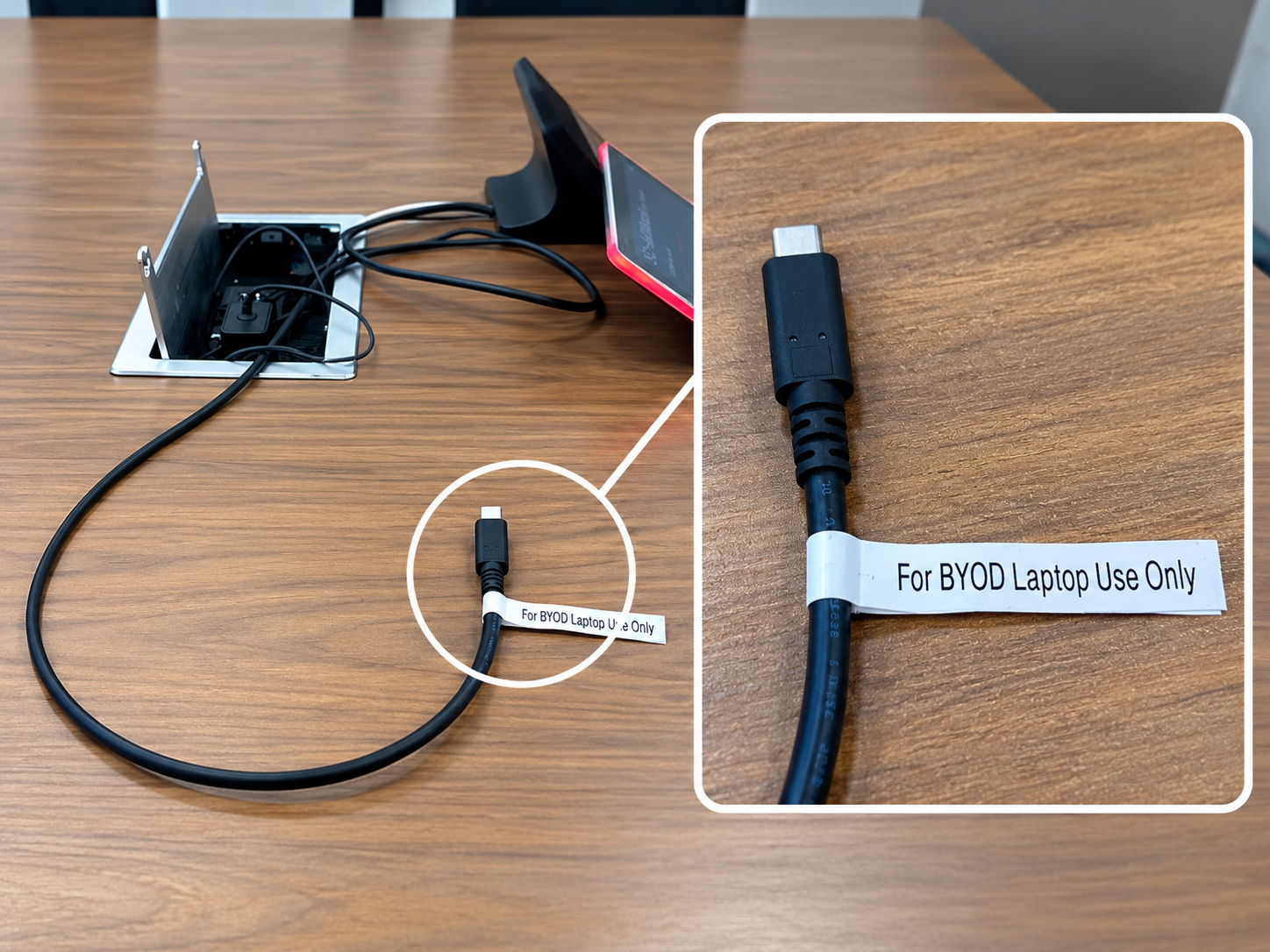
  • Locate the USB-C cable provided in the meeting room.
  • Make sure your laptop supports the required USB-C connection.

Step by step

01

Connect Your Laptop

Plug the meeting room USB-C cable into your laptop.

02

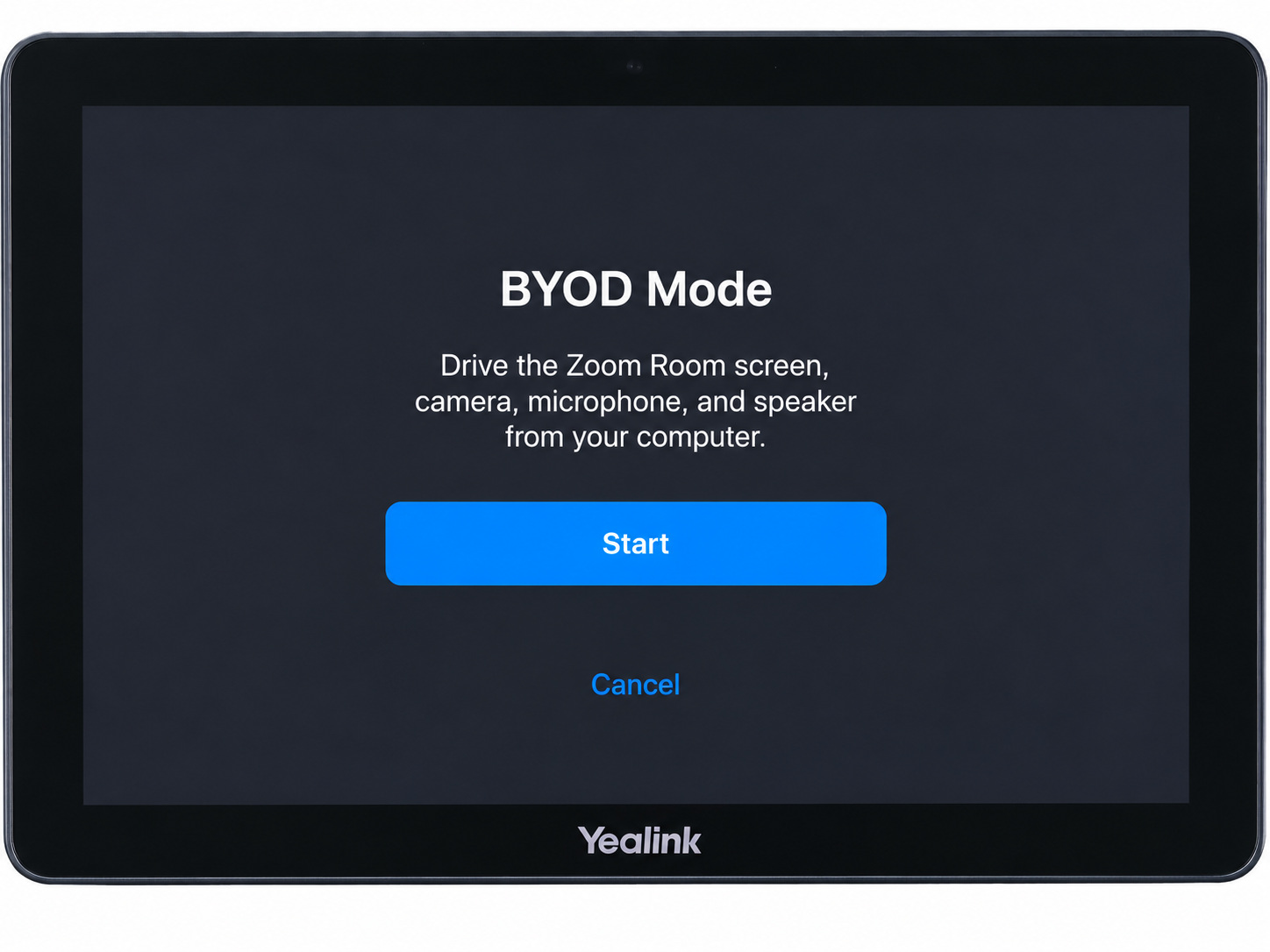
Select BYOD on the Touch Panel

On the meeting room touch panel, select BYOD to use your laptop with the room equipment.

03

Show Your Laptop on the TV

Follow any on-screen connection prompt. Your laptop content should appear on the meeting room TV.

04

Use the Room Audio and Camera If Needed

For an online meeting from your laptop, select the room camera, microphone, and speakers in your meeting application.

05

Disconnect When Finished

Exit the laptop connection mode using the meeting room touch panel, then disconnect the USB-C cable.

IMPORTANT

  • Wireless Zoom screen sharing is recommended for ordinary presentations.
  • USB-C is an alternative connection method.
  • Some laptops may require a compatible USB-C port or adapter.
  • When using the room audio equipment, avoid enabling duplicate laptop audio.

Related guides

Need help?

Contact IT Support if the room equipment does not work as described.

ServiceHub: servicehub.gtiit.edu.cn  |  Email: itsupport@gtiit.edu.cn